How to print a coloring book PDF at home: settings that work
You bought the book, the file is sitting in your downloads, and now you are staring at a print dialog full of settings. Get it wrong and the edges vanish, the lines turn gray, or the marker soaks through to your desk.
Here is how to print a coloring book PDF at home and get clean pages the first time. You get the exact settings, the paper to buy for your medium, and the answer to the one question that other guides contradict each other on.
What do you need before you print?
You need the PDF saved to your computer, a printer with fresh ink or toner, paper that suits your medium, and ten minutes for a test page. Do the setup once and every book after it prints the same way. Nothing here needs special equipment beyond a free PDF reader.
Save the file first. A Motiv Colors purchase gives you three downloads with no expiry date, so put a copy somewhere permanent instead of downloading it again each time. Open it in Adobe Acrobat Reader, which is free and has the clearest print options.
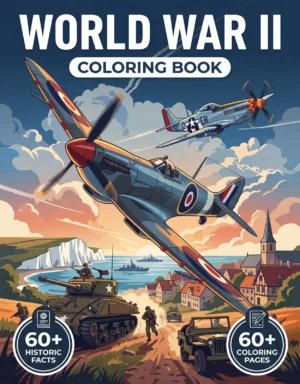
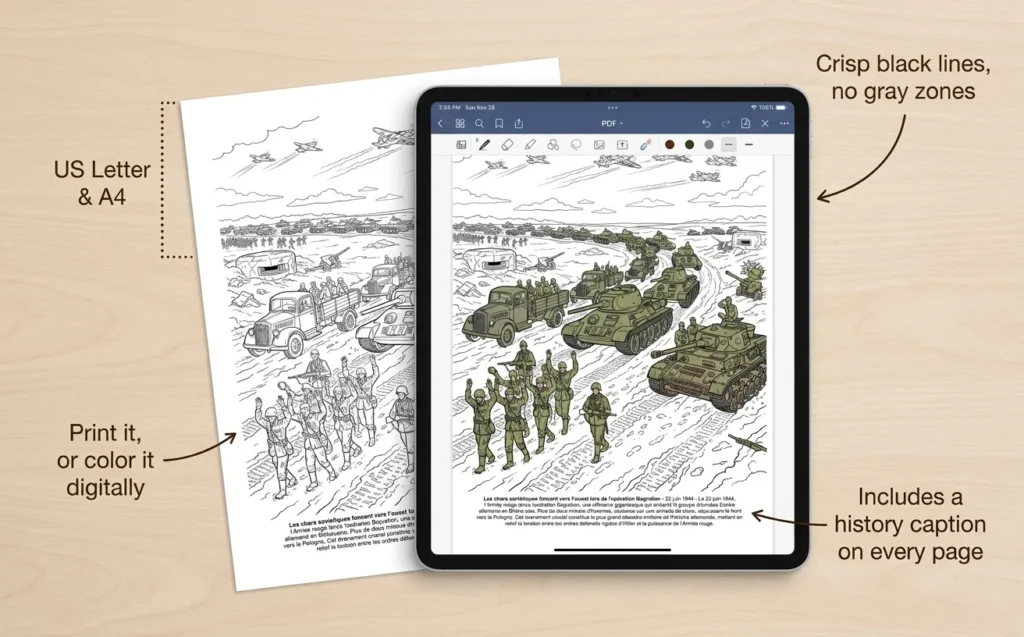
Then know what is in the file. Our English PDFs are set up at US Letter, 8.5 x 11 inches, and each book runs 25 to 30 detailed pages, apart from World War II, which has 60+. Every scene carries its caption of real history, so you print the story along with the illustration.
How to print a coloring book PDF step by step
Open the file in a PDF reader, choose one page, set your paper size, select Actual size for US Letter paper or Fit for A4, turn off two-sided printing and choose the highest quality. Print that single page as a test. If it looks right, print the rest in batches.
Open the PDF in a reader, not a browser tab. Browser viewers can add headers and change the size of the page.
Choose one page. Type a single page number in the Pages box so your first print is a test.
Match the paper size to the sheets in your tray: US Letter or A4.
Set the sizing. Actual size for US Letter paper, Fit for A4. The next section explains why.
Turn off double-sided printing. Check the printer properties as well, since some drivers keep it on.
Choose the highest quality and set the paper type to match your stock, such as Matte or Heavy.
Print and check the test page. You want solid black lines and nothing cut off.
Print the rest in batches of five to ten pages, so one empty cartridge cannot spoil a full book.
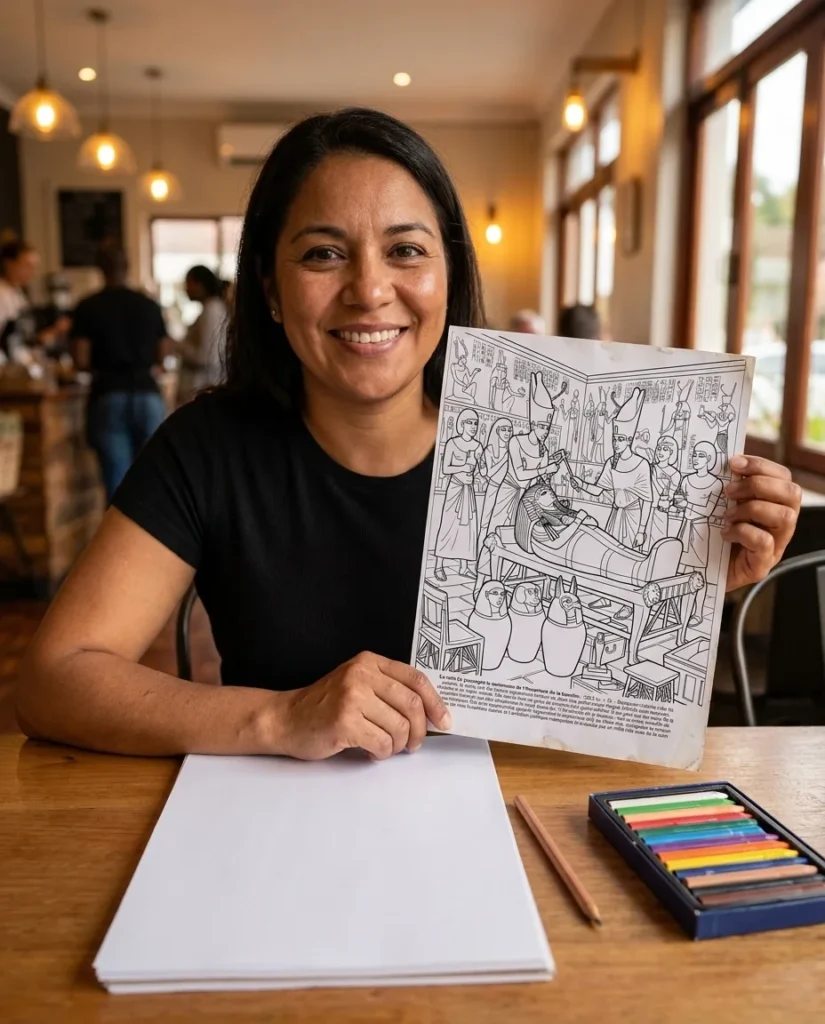
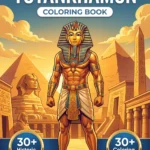
Run your test on a page you actually want to color. A busy scene such as Tutankhamun’s tomb or a Normandy beach exposes faint lines and cropped corners far faster than a simple page would.
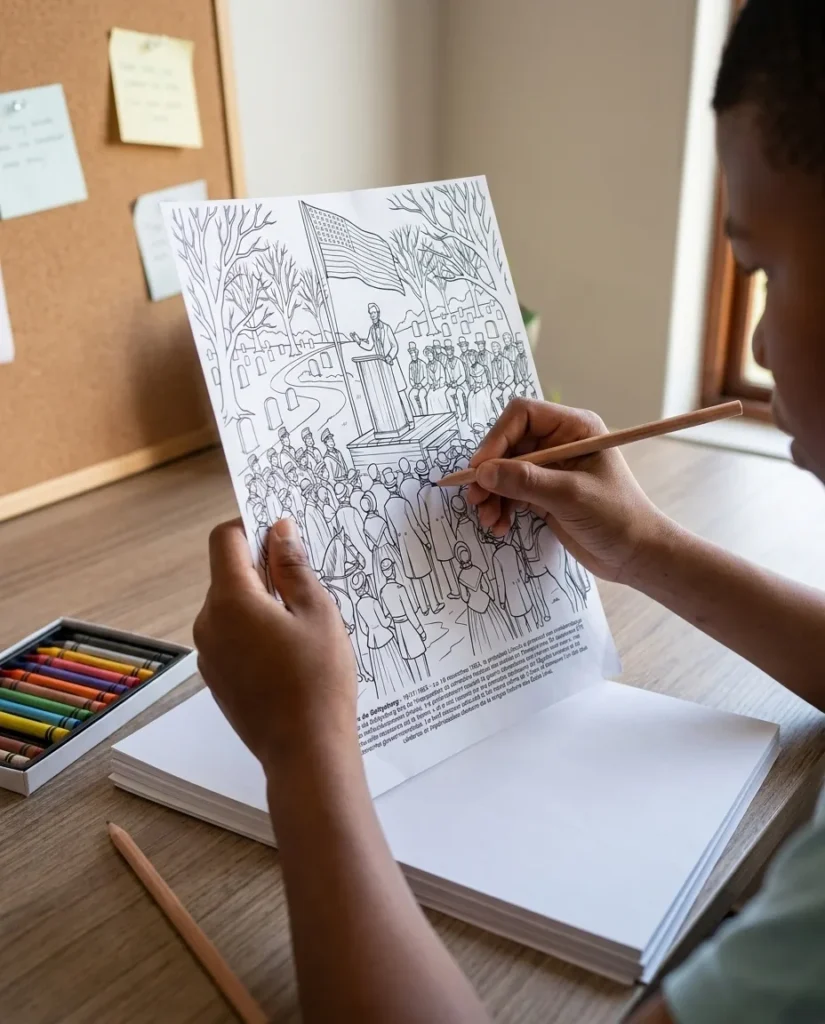
A printed page from the Tutankhamun coloring book.
Actual size or fit to page: which setting is right?
Use Actual size when your paper matches the PDF, and Fit when it does not. A US Letter PDF on US Letter paper needs no scaling, while the same file on A4 does, because A4 is narrower. That one rule settles the disagreement you will find across other printing guides.
Some guides tell you to always choose Fit, and others tell you never to. Both are half right, because the answer depends on the two sizes involved. Adobe’s own definitions make it simple: Actual size prints without scaling and crops whatever does not fit, while Fit resizes the page to the printable area of your sheet.
Your PDF
Your paper
Choose
What happens
US Letter
US Letter
Actual size
Prints at 100%. If your printer clips the outer edge, switch to Fit.
US Letter
A4
Fit
A4 is 5.9 mm narrower and 17.6 mm taller, so Fit shrinks the page by a few percent and leaves white strips at the top and bottom.
A4
US Letter
Fit
Letter is 17.6 mm shorter, so Fit shrinks the page slightly and leaves white strips at the sides.
Any size
A larger sheet
Fit
Enlarges the page to fill the sheet.
On A4 you lose nothing that matters. The reduction is too small to notice on a finished page, and the whole illustration stays on the sheet.
Home printers also keep a narrow margin they cannot reach. If a page at Actual size loses a sliver of its border, switch to Fit and move on.
What paper should you use for a printed coloring book?
Use 120gsm paper for colored pencils, 160gsm for water-based markers, and 200gsm or heavier for alcohol markers and watercolor. Smooth stock suits wax pencils and markers, while a light tooth helps oil pencils layer. Standard 75gsm office paper works for a test page but wrinkles under heavy color.
Your medium
Paper weight
US equivalent
Surface
Wax pencils (Prismacolor)
120gsm or heavier
32 lb bond
Smooth
Oil pencils (Faber-Castell Polychromos)
120gsm or heavier
32 lb bond
Light tooth
Gel pens and fineliners
100 to 120gsm
28 to 32 lb bond
Smooth
Water-based markers (Tombow)
160gsm or heavier
60 lb cover
Smooth
Alcohol markers (Copic, Ohuhu)
200gsm or heavier
110 lb index or 80 lb cover
Smooth, coated if your printer accepts it
Watercolor
200gsm or heavier
110 lb index or heavier
Test a corner first
Heavier paper takes layer after layer of colored pencil.
Check your printer’s limit before you buy a ream. Many home printers accept heavy stock only through a rear tray or one sheet at a time, so look up the maximum in the manual.
Let the book guide the spend. Our World War II scenes take hours of layered pencil, so 120gsm earns its price there, and you can compare the cost against a bound copy in our PDF vs physical coloring book breakdown.
Which printer settings give the cleanest lines?
Choose the highest quality your printer offers, set the paper type to match your stock, and print the scenes in black only. Draft or ink-saver mode thins the outlines and turns them gray. Line art uses little ink because the page is mostly white, so the better setting costs very little.
Inkjet and laser printers both work. An inkjet page needs a few minutes to dry before you touch it, and its ink can smear under alcohol markers, so test a corner first.
The cover is in color and the scenes are black line art. If you want the cover, print it once on your heaviest stock, then run the scenes in black only.
Should you print single-sided or double-sided?
Print single-sided every time. Pencil pressure embosses the back of the sheet, markers bleed straight through, and a double-sided page means finishing one scene can ruin the next. Single-sided printing also lets you pull out a finished page and frame it without sacrificing another illustration on the reverse.
Slip a scrap sheet under your page when you use markers, since even heavy paper can let some color through to the desk. If a page goes wrong, print it again for the cost of one sheet.
That safety net changes how you color, because you stop being afraid of the page. Try something risky from our guide on how to color texture on a spare copy before you commit to the real one.
How do you print from a phone or tablet?
On an iPhone or iPad, open the PDF in Files or Books, tap Share, then Print, and choose your AirPrint printer. On Android, open it in Google Drive, open the menu and tap Print. Phones offer fewer sizing options than a computer, so print one test page before you run a batch.
If your phone will not let you change the scaling, move the file to a computer for the full set of controls. A tablet gives you another option: color directly on the PDF in an app such as Procreate and skip the paper entirely.
One file, two ways to color: on paper or on a tablet.
Which pages should you print first?
Print in story order and in small batches. Every Motiv Colors book runs chronologically, so the first five pages give you the opening of the story and a stack you can realistically finish. You keep your desk clear, and you only buy paper for the pages you will color.
Take the Tutankhamun book: you start with a nine-year-old taking the throne and reach Howard Carter’s discovery in 1922 by the last pages. Print one stretch of the story at a time and each batch feels like an episode. Read each caption before you pick up a pencil, for the reasons we set out in learning history through coloring.
The World War II book needs this approach most. At 60+ scenes, print by campaign: Dunkirk and the Battle of Britain one weekend, the Pacific the next. If you are printing as a present, our guide on how to gift a printable shows you how to box the first ten.
Get 5 illustrations from our bestselling coloring books, for free.
You will receive in your mail box the link to download the 5 illustrations in high quality and PDF format.
How do you bind a printed coloring book?
Keep pages loose in a folder if you color one at a time, use a three-ring binder if you add batches, and take the stack to a copy shop for spiral binding if you want a real book. Bind after you print, and leave room to swap in reprints later.
Binder clips. The quickest option, and easy to undo when you want a single page flat on the desk.
A folder or flat box. Keeps finished pages from creasing and doubles as gift packaging.
A three-ring binder. Punch the pages and add each new batch in story order.
Spiral binding at a copy shop. Usually inexpensive, and it lets the book lie flat. Finished pages stay in order.
A copy shop is also the answer if you own no printer at all. You can have the file printed for your own use on paper heavier than most home machines can feed. Ask for single-sided printing at actual size on US Letter or A4.
Why did my coloring page print wrong?
Most printing problems come from four things: the wrong scale, the wrong paper size, draft quality or a browser viewer. Match your symptom in the table below, change that one setting, and print a single page again before you run the full batch. Most problems clear on the first retry.
Change one setting at a time. If you change three at once, you will not know which one fixed it for next time.
Symptom
Likely cause
Fix
Edges cut off
Actual size on paper smaller than the page, or the printer’s margin
Choose Fit
Small image, wide margins
Custom scale below 100%, or paper size set larger than your sheet
Choose Actual size and check the paper size
Faint or gray lines
Draft or ink-saver mode, or low ink
Choose the highest quality and check the cartridge
Website address on the page
Printed from a browser
Download the file and open it in a PDF reader
Color smears
Inkjet ink still wet, or alcohol marker on inkjet
Let it dry longer and test a corner
Stripes across the page
Clogged print heads
Run your printer’s head cleaning cycle
Jams on heavy paper
Over the printer’s limit or the wrong tray
Use the rear tray, one sheet at a time, on the heavy paper setting
Printing coloring pages: your questions answered
Should I print a coloring book PDF at actual size or fit to page?
Use Actual size when the PDF matches your paper, such as a US Letter file on US Letter sheets. Use Fit when they differ, such as a US Letter file on A4. Fit shrinks the page by a few percent and keeps the full image on the sheet.
What is the best paper for printing coloring pages?
Use 120gsm for colored pencils, 160gsm for water-based markers and 200gsm or heavier for alcohol markers and watercolor. Print single-sided in every case. Standard office paper is fine for a test page.
Can I print a whole coloring book at once?
You can, but batches of five to ten pages are safer. A low cartridge or a wrong setting then costs you a few sheets rather than a full book. It also keeps the stack small enough to finish.
Do I need a color printer for a coloring book?
No. The scenes are black line art, so a black-only printer is enough. You only need color if you want to print the cover.
Can I reprint a page after I have colored it?
Yes. Reprint any page as often as you like for your own coloring, which is one of the main reasons to choose a PDF. Try a new palette on a spare copy of a scene you have already finished.
Can a print shop print my coloring book PDF?
Yes, for your own use. A copy shop can print on heavier paper than most home printers can feed, which helps with markers and watercolor. Ask for single-sided printing at actual size.
Print one page tonight
You now have everything you need: the right paper, the right setting and a test page to confirm both. Print one scene tonight, color it this weekend, and reprint it whenever you want another attempt. Every Motiv Colors title arrives as an instant PDF, ready for its first page in minutes.
Choose the era you have always wanted to know better. Then let the printer do the boring part.
We use cookies to enhance your browsing experience, serve personalized content and analyze our traffic. You can accept all cookies, reject non-essential ones, or manage your preferences.
Required for the website to function and cannot be switched off. They are usually set in response to actions you make, such as setting privacy preferences or logging in.
Allow the website to remember choices you make (such as language or region) to provide enhanced, personalized features.
Help us understand how visitors interact with the website by collecting and reporting information anonymously.
Used to track visitors across websites to display relevant advertising and measure campaign effectiveness.